




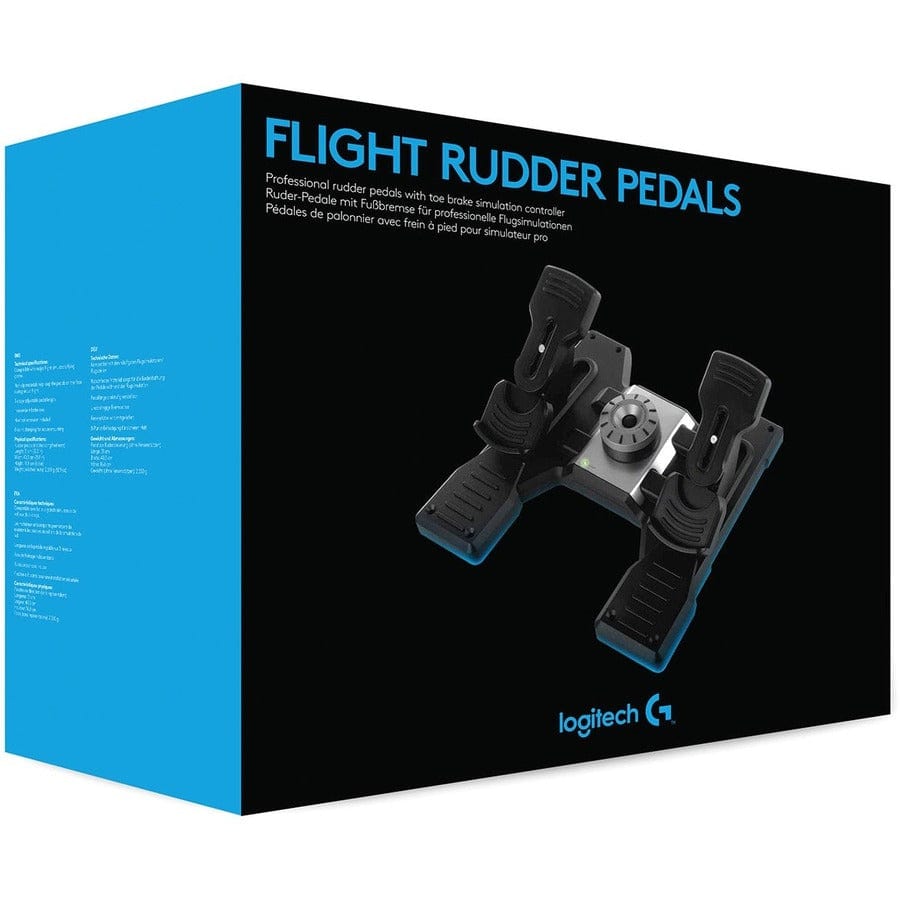
Logitech G Saitek Pro Saitek Flight Rudder Pedals (PC)
18853
Benefits
Benefits
Shipping & Delivery
Shipping & Delivery
Returns
Returns
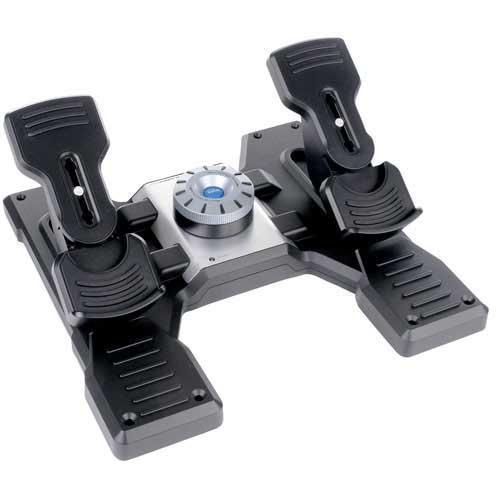
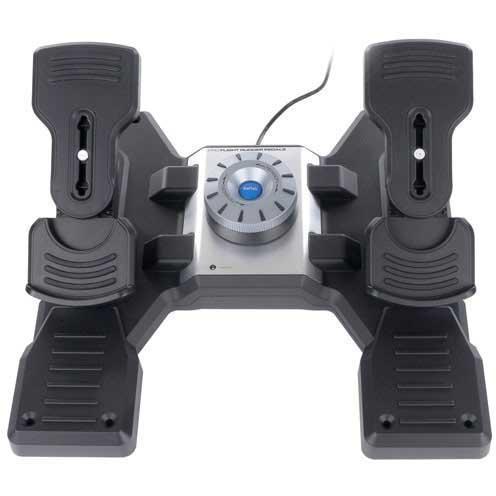
The Logitech G Pro Flight Rudder Pedals transform your PC flight simulation experience by adding authentic rudder and toe brake control that mirrors real aircraft operation.
These professional flight rudder pedals feature an innovative adjustable tension system that lets you customize resistance levels to match your flying style and aircraft preferences.
Realism and Precision for Flight Sim Enthusiasts
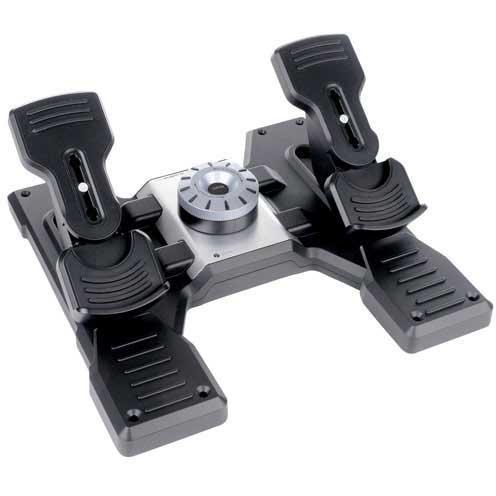
Whether you're wondering do I need rudder pedals for flight sim or seeking the best rudder pedals for home flight simulator setups, these self-centering pedals deliver the precision control that serious flight simulation enthusiasts demand. The fluid motion enables accurate command over your aircraft's rudder movements, while independent left and right toe brakes provide realistic differential braking just like professional pilots experience. Adjustable footrests accommodate various sizes and feature non-slip materials that keep the pedals stable during intense virtual flights, solving the common frustration of equipment shifting during critical maneuvers.
Seamless Integration and Compatibility
Designed as part of the comprehensive Logitech G flight simulation ecosystem, these PC flight sim pedals integrate seamlessly with other Logitech G flight controls to create a cohesive home cockpit experience. The simple USB connection works flawlessly with Windows 7 through 11, while universal compatibility spans Microsoft Flight Simulator 2020, X-Plane, FSX, and Prepar3D. For aviation students, aspiring pilots, and home cockpit builders, the customizable resistance dial transforms how you interact with flight simulator rudder controls, allowing you to fine-tune pressure sensitivity with just a twist to match everything from light sport aircraft to heavy commercial jets.
Master your aircraft with precision: Logitech G Pro Flight Rudder Pedals offer an adjustable tension system for tailored realism, seamless Logitech G ecosystem integration, and universal compatibility with major flight simulators. Upgrade your cockpit today!
Frequently Asked Questions
Do the Logitech G Saitek Pro Flight Rudder Pedals have toe brakes?
Yes. They feature independent left and right toe brakes that deliver realistic differential braking, just like a real aircraft, so you can practice taxiing and ground handling with each side controlled separately. The self-centering pedals also provide authentic rudder and yaw control for more immersive and accurate flight simulation at home.
Are these rudder pedals self-centering, and can I adjust the resistance?
Yes. The pedals are self-centering, so they return to neutral for accurate rudder input. An adjustable tension system lets you customize the resistance with a simple twist, from a lighter feel for light sport aircraft to firmer pressure for heavy commercial jets. The adjustable footrests also use non-slip materials and accommodate various foot sizes.
What flight simulators are the Saitek Pro Flight Rudder Pedals compatible with?
They offer universal compatibility with major PC flight simulators, including Microsoft Flight Simulator 2020, X-Plane, FSX, and Prepar3D. Inside your simulator you can assign the rudder and toe brake axes in the controls menu. Designed as part of the Logitech G flight simulation ecosystem, they also integrate with other Logitech G flight controls.
What operating system and connection do these pedals need?
The pedals use a USB 2.0 connection and work with Windows 7 through Windows 11. They are designed for PC flight simulation, so confirm your setup is Windows-based before ordering.
Do I need a separate yoke or joystick to use these rudder pedals?
No. The pedals connect independently to your PC through a USB connection and function on their own as rudder and brake input. They are also designed as part of the Logitech G flight simulation ecosystem, so they integrate with other Logitech G flight controls if you want to build a fuller home cockpit setup over time.
Do the pedals slide on hard or wood floors?
The adjustable footrests use non-slip materials designed to keep the pedals stable during intense virtual flights. On smooth surfaces such as hardwood, one customer reviewer noted that hard braking can still cause some movement, so placing them against a wall or on a mat or carpet can help hold them in position.
Do these rudder pedals need drivers or extra software to work?
For basic rudder and toe brake input they connect over USB and are essentially plug and play, so most simulators recognize them without separate drivers. You may still want to open your simulator controls menu to assign the rudder and brake axes. Optional Logitech G configuration software is available from Logitech for custom profiles.
Are the Saitek Pro Flight Rudder Pedals compatible with Mac or game consoles?
These pedals are designed for Windows PCs and are compatible with Windows 7 through Windows 11 over a USB connection. They are not marketed for Mac, Xbox, or PlayStation use. If you plan to fly on a Mac or a console rather than a Windows PC, confirm compatibility for your specific setup before ordering.
How do I set up the rudder and toe brake axes in my simulator?
Connect the pedals to a USB port, then open the controls or settings menu inside your flight simulator such as Microsoft Flight Simulator, X-Plane, or FSX. Assign the rudder axis to the left and right pedal motion and map each toe brake to its own axis. This lets you steer with your feet and use independent differential braking during taxi.
-
 SaleVendor:Logitech G
Logitech G Saitek Basic Flight Simulation Bundle w/Microsoft Flight Simulator Standard Digital Download (PC)
Regular price $389.99Sale price $389.99 Regular priceUnit price per$519.97 -
 Vendor:Thrustmaster
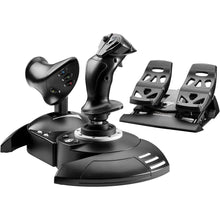
Thrustmaster T.Flight Full Kit X (Xbox Series X|S, One, PC)
Regular price $199.99Sale price $199.99 Regular priceUnit price per -
 Vendor:Thrustmaster
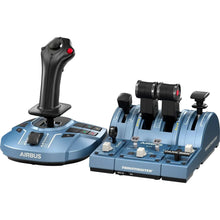
Thrustmaster TCA Captain Pack X Airbus Edition (Xbox Series X|S, One, PC)
Regular price $299.99Sale price $299.99 Regular priceUnit price per -
 Vendor:Thrustmaster
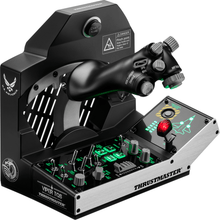
Thrustmaster Viper TQS Mission Pack: Metal Throttle Quadrant System (PC)
Regular price $499.99Sale price $499.99 Regular priceUnit price per -
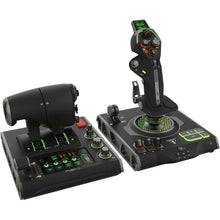 Vendor:Turtle Beach
Turtle Beach VelocityOne Flightdeck Ultimate PC HOTAS Controller (PC)
Regular price $379.99Sale price $379.99 Regular priceUnit price per -
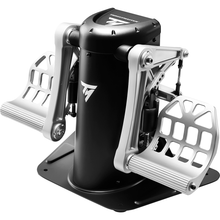 Vendor:Thrustmaster
Thrustmaster TPR Pendular Rudder Pedals (PC)
Regular price $599.99Sale price $599.99 Regular priceUnit price per -
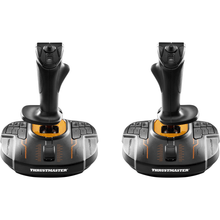 Vendor:Thrustmaster
Thrustmaster T.16000M FCS Space Sim Duo Stick (PC)
Regular price $159.99Sale price $159.99 Regular priceUnit price per -
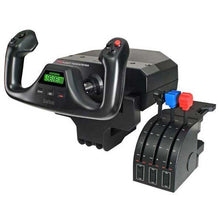 SaleVendor:Logitech G
Logitech G Saitek Pro Saitek Flight Yoke & Throttle Quadrant System (PC)
Regular price $179.99Sale price $179.99 Regular priceUnit price per$229.99 -
 Vendor:Turtle Beach
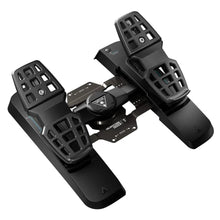
Turtle Beach VelocityOne Precision Flight Simulator Rudder Pedals (Xbox Series X|S, One, PC)
Regular price $319.99Sale price $319.99 Regular priceUnit price per$299.95 -
 Vendor:Thrustmaster
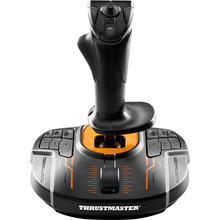
Thrustmaster T.16000M FCS (PC)
Regular price $79.99Sale price $79.99 Regular priceUnit price per


-
 FREE U.S. Shipping (on $100+)Save on outbound delivery!
 -
 4.8/5 StarsReviewed by 26,000+ Fellow Pilots
 -
 Expert Pilot SupportGear Tested by Real Pilots
 -
SHIPS TODAY (Order by 3 PM ET)Get It Faster!
- Choosing a selection results in a full page refresh.
- Opens in a new window.